Seedream 5.0 Pro for the frame before the film

Build a visual direction before deciding how a shot should move. Seedream 5.0 Pro turns a written brief and image references into storyboards, product scenes and campaign layouts. Explore a composition, inspect the details, then carry your chosen image into the next stage of your Veo 3 project.

Plan the image

Give Seedream 5.0 Pro a clear visual job

Seedream 5.0 Pro brings image generation and editing into the same creative process. Decide what the frame needs to communicate, then define its subject, reading order and atmosphere. A focused brief makes the first result easier to evaluate and gives each revision a purpose.

01

Product frames with room for a message

Use Seedream 5.0 Pro to position a product in a setting with a defined foreground and background. Specify the silhouette, material and camera height. Leave space for campaign copy or a later video crop so the product remains the focus across placements.
02

Storyboards that explain the sequence

Describe the key beats of a short film in Seedream 5.0 Pro. State the panel count, shot sizes and direction of movement. Review the sequence for recognizable subjects and clear transitions before choosing a panel to develop into a separate reference image.

03

Layouts for dense information

Seedream 5.0 Pro can organize diagrams, labels and explanatory text within one composition. Supply the facts and decide which point should be read first. A heading, grouped details and deliberate whitespace help an instructional image support a larger presentation or film.

04

Edits with a defined area of change

Guide Seedream 5.0 Pro with the original image and a specific revision. Name the object, color or material to change, then describe the composition and lighting to preserve. Compare the result at full size before using it as the next reference.

05

Photographic light and materials

In Seedream 5.0 Pro, describe where light enters the scene and how it meets glass, fabric or skin. Specify the time of day and the relationship between the subject and background. These decisions establish a visual language you can continue into moving footage.

06

Campaign images across languages

Give Seedream 5.0 Pro the exact words and language for each layout. Identify the headline, supporting line and small labels separately. Review spelling, line breaks and contrast at the intended display size, especially when adapting one design for several audiences.

ByteDance model examples

Read the design decisions in Seedream 5.0 Pro examples

These Seedream 5.0 Pro images come from ByteDance’s model showcase. Examine the arrangement of subjects, captions and light, then use what you observe to write a more specific brief for your own project.

Images published by ByteDance in its Seedream 5.0 Pro showcase.

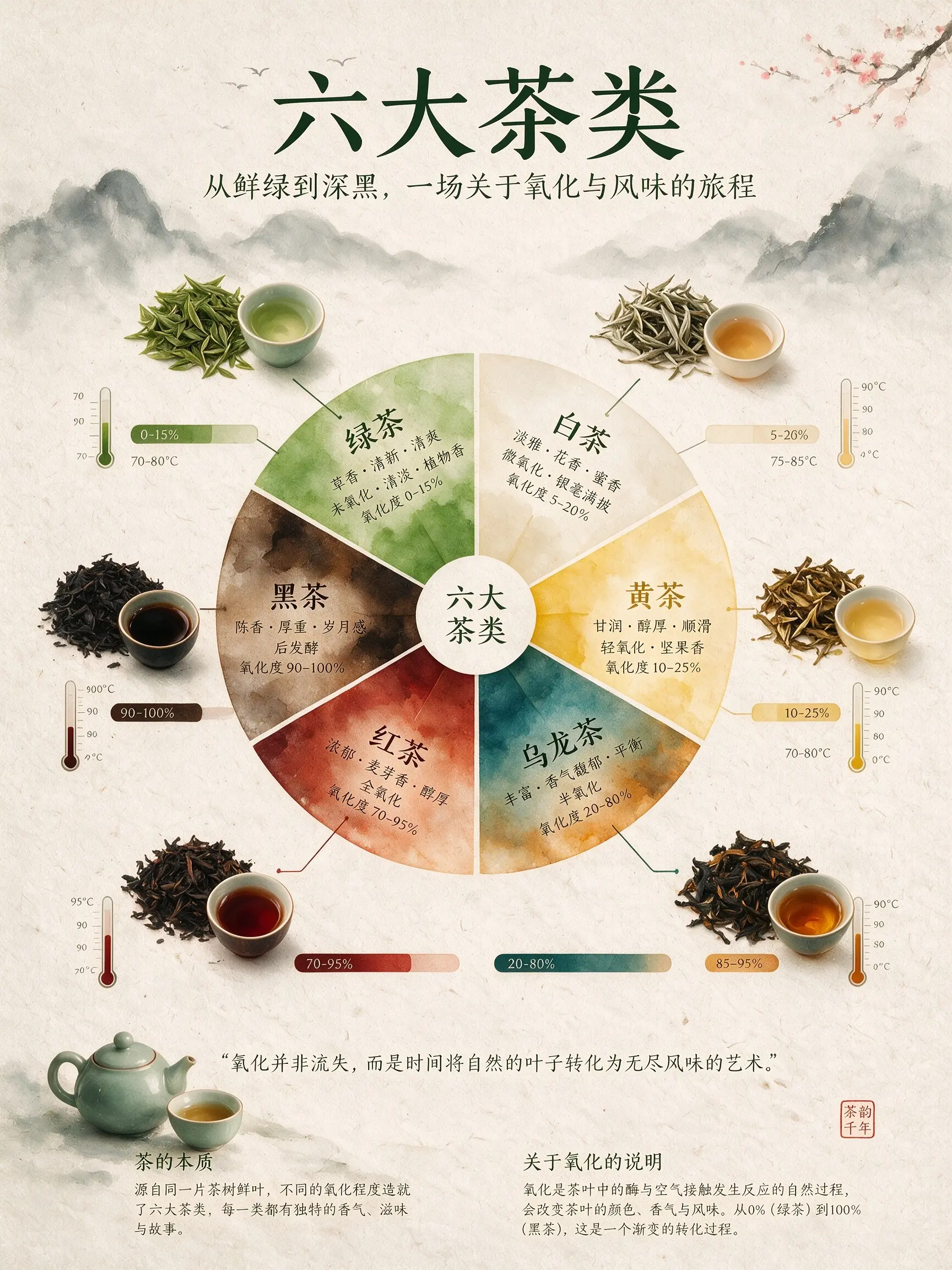
Seedream 5.0 Pro tea infographic with a watercolor flavor wheel and illustrated tea varieties

Information design

A diagram with a central idea

The tea wheel shows how Seedream 5.0 Pro can arrange related illustrations around a main diagram. Look at the reading path from the center to the outer labels when planning your own explanatory frame.

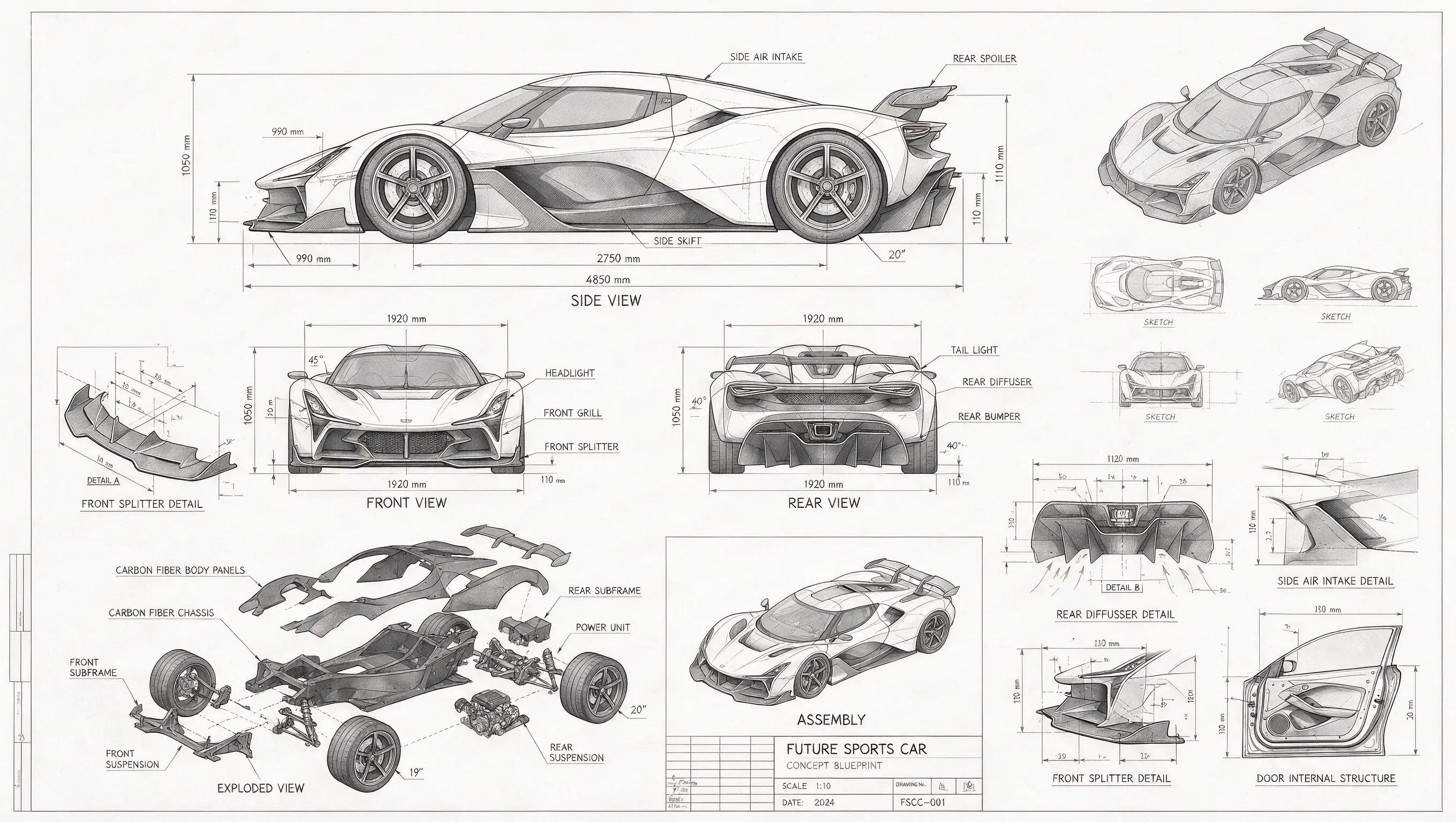
Official sports car concept sheet with orthographic views and component drawings

Concept development

Several views of one object

This Seedream 5.0 Pro vehicle sheet puts perspective studies and component drawings together. Use the arrangement to think through what a viewer needs to see before a product reveal.

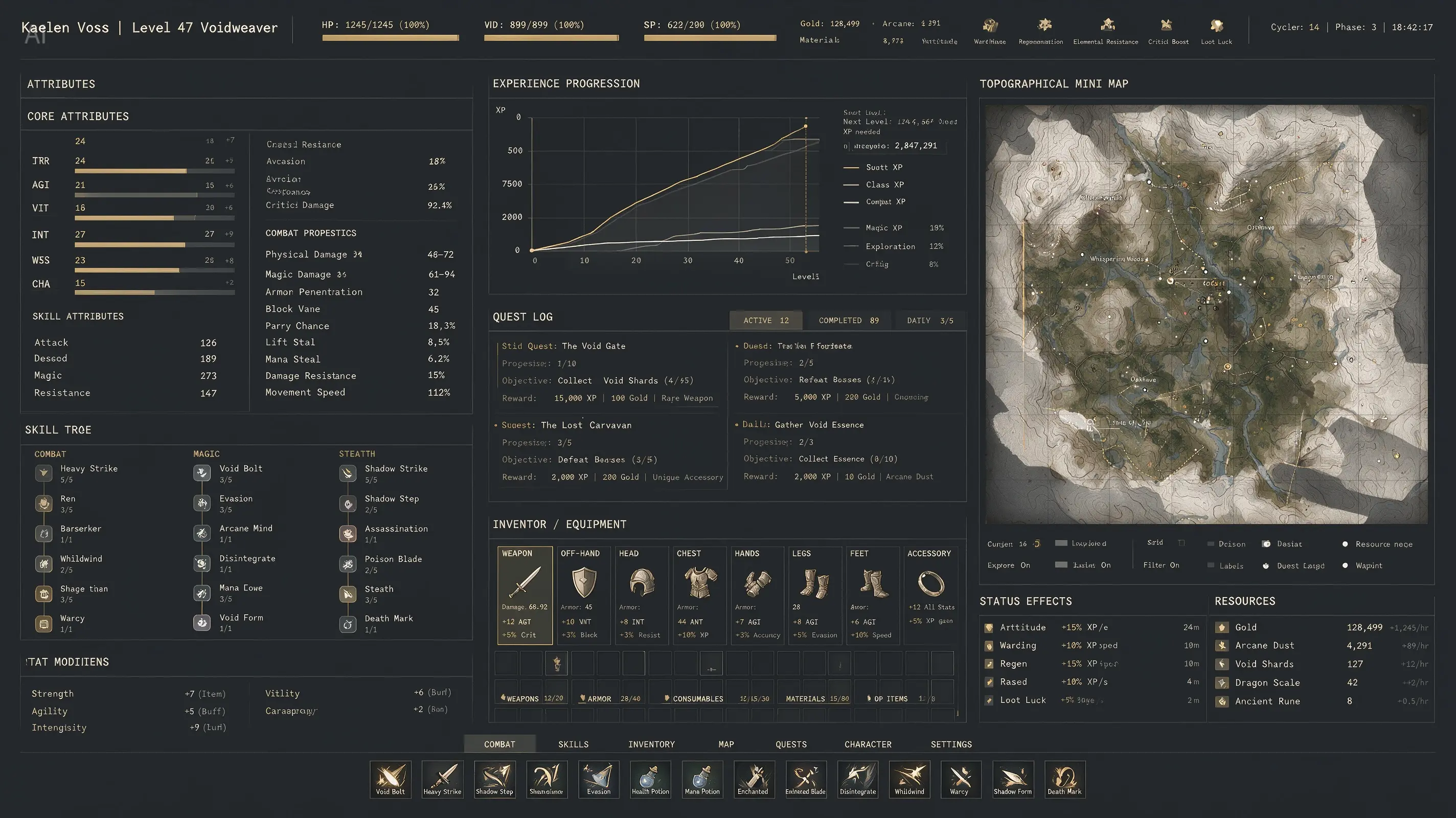
Official fantasy game interface concept with character statistics and a map

Interface concepts

An interface with many focal points

The Seedream 5.0 Pro dashboard example combines a map, character details and compact panels. Notice how borders, spacing and brightness establish a visual hierarchy for a dense composition.

Official Montessori education poster with a warm palette and illustrated learning activities

Educational posters

A vertical teaching frame

In this Seedream 5.0 Pro poster, illustrations help group educational content. Plan short text blocks and a visible progression when developing a portrait-format explainer for a presentation.

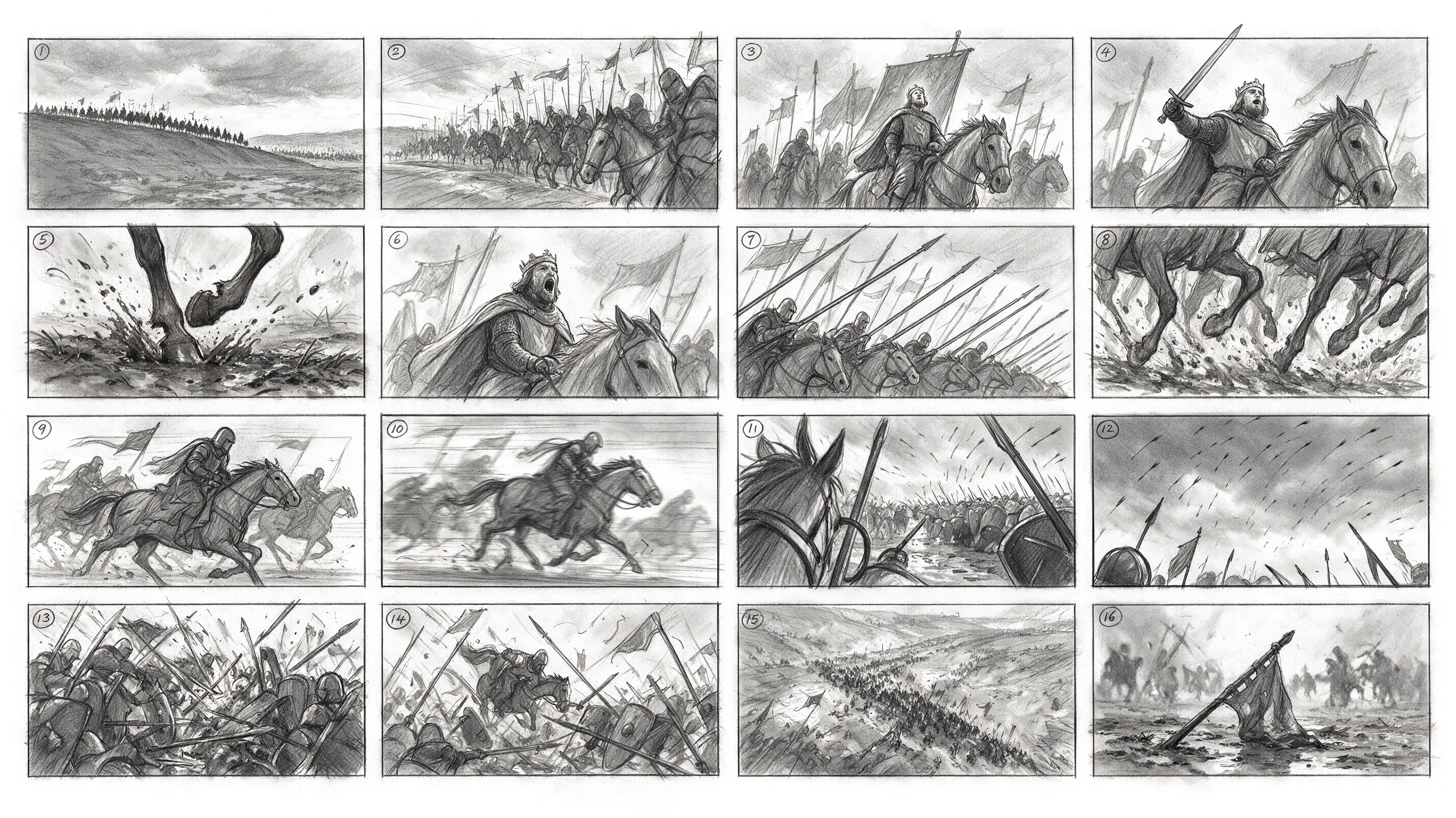
Official cavalry storyboard with sixteen numbered pencil-sketch panels

Story planning

A sequence on one canvas

The Seedream 5.0 Pro storyboard uses panel changes to suggest camera position and action. Inspect which frames establish the setting and which concentrate on a subject or movement.

Seedream 5.0 Pro pet ecommerce homepage concept featuring a golden retriever

Ecommerce design

A product campaign layout

The pet-store image combines a headline, interface-style elements and an expressive animal. Use Seedream 5.0 Pro to explore the placement of a campaign’s visual and written message.

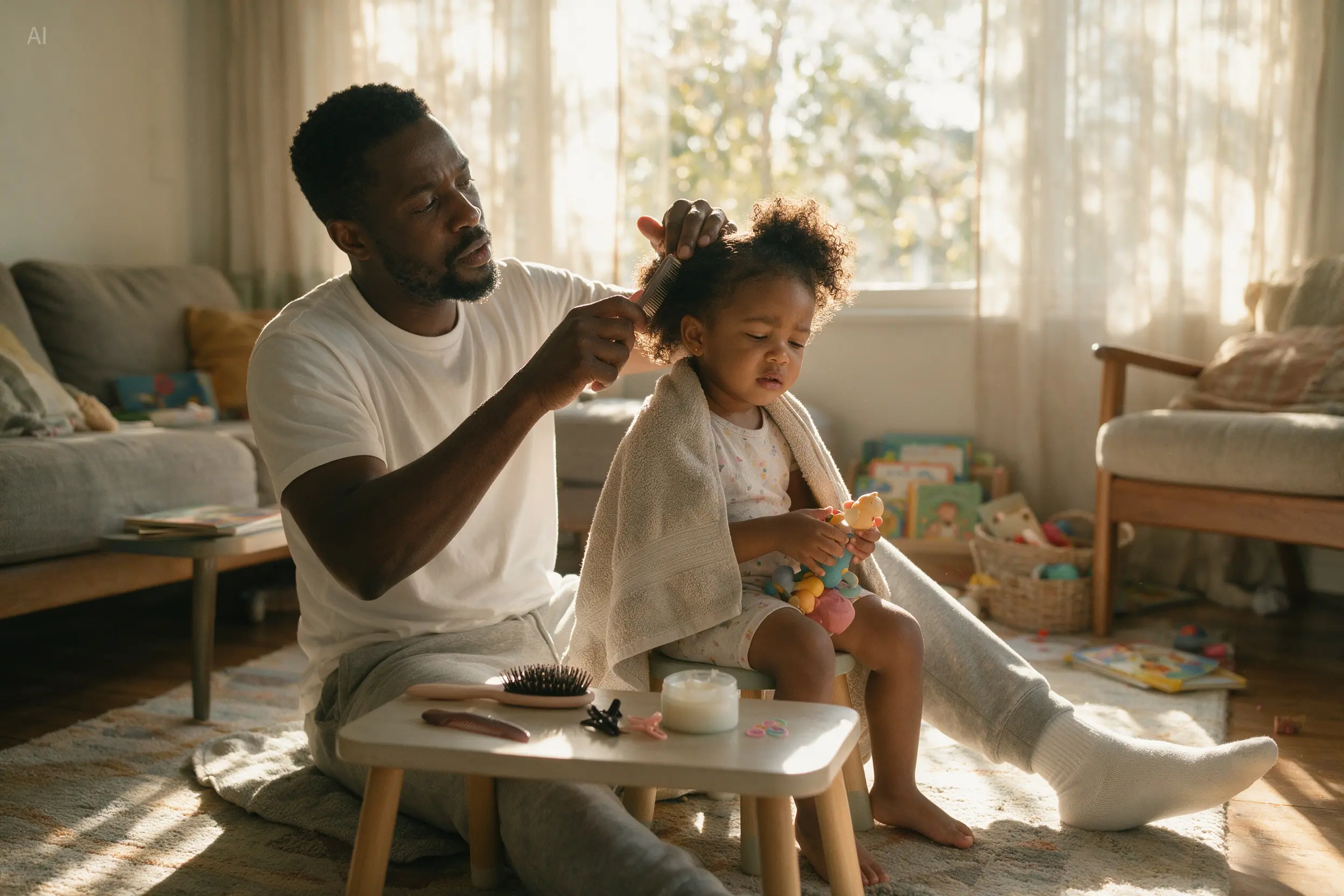
Official realistic image of a father helping his daughter with her hair at home

Lifestyle photography

A quiet domestic moment

Observe how Seedream 5.0 Pro renders interaction, fabric and indoor light in the family scene. Describe the relationship between people and their surroundings when planning a similar shot.

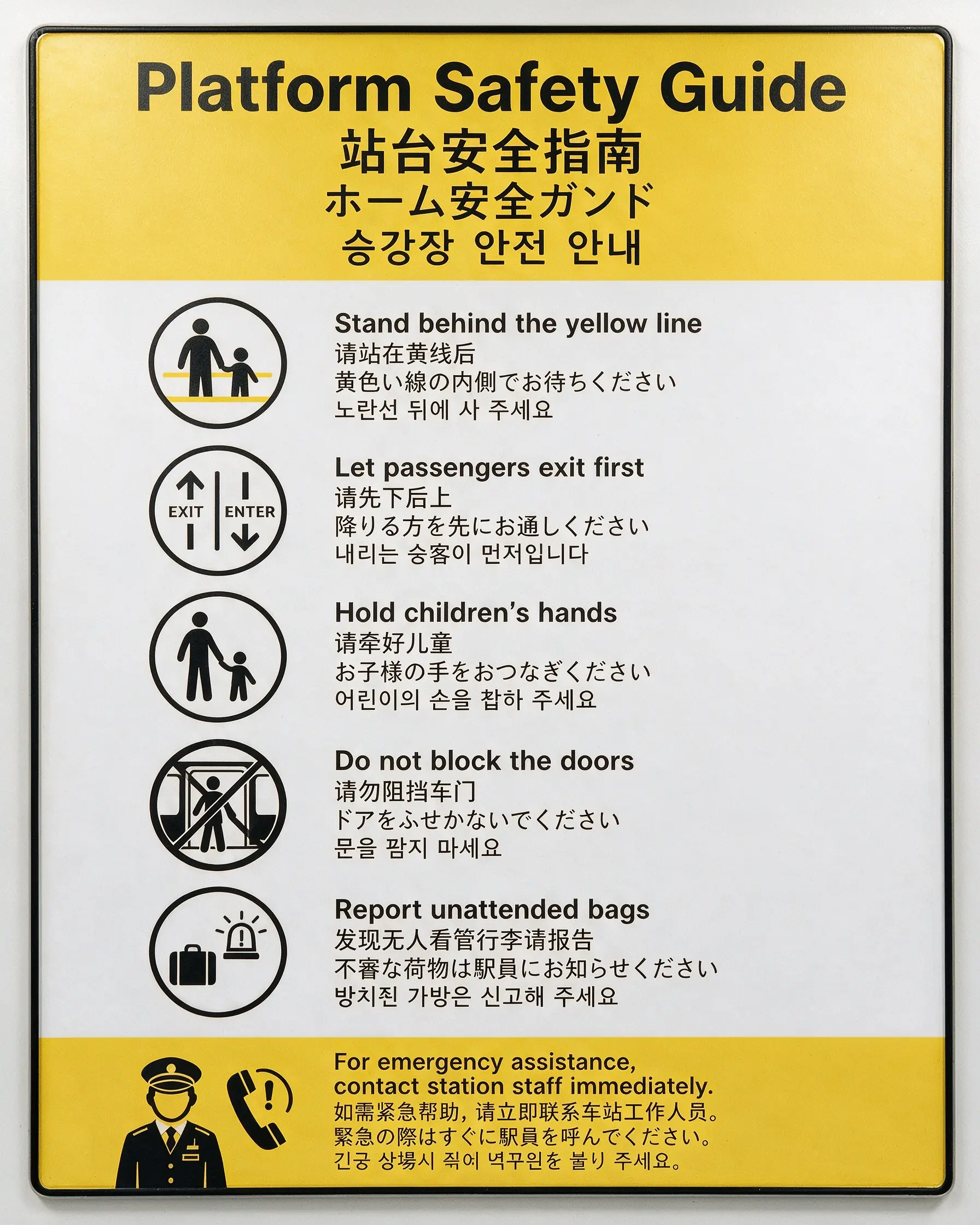
Seedream 5.0 Pro multilingual transit poster with English, Chinese, Japanese, and Korean text

Multilingual layouts

Several languages in one design

This Seedream 5.0 Pro transit poster gives each language a place within the composition. Assign text blocks deliberately and review each version before approving a localized asset.

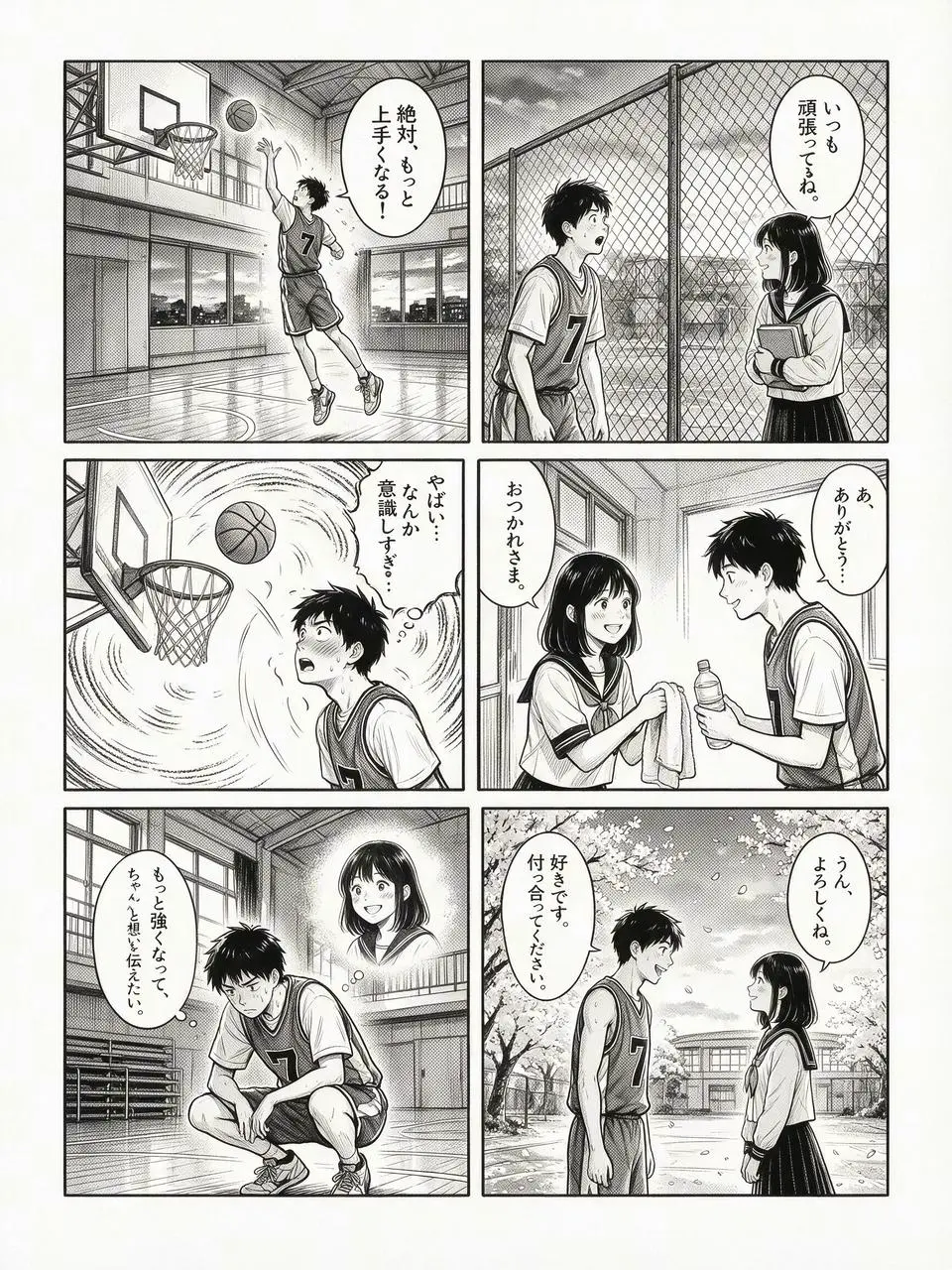
Official black-and-white Japanese manga page with basketball scenes

Illustrated storytelling

A story told through panels

Expressions and changes in framing carry the manga sequence. Give Seedream 5.0 Pro the character descriptions, panel order and key moments you want readers to follow.

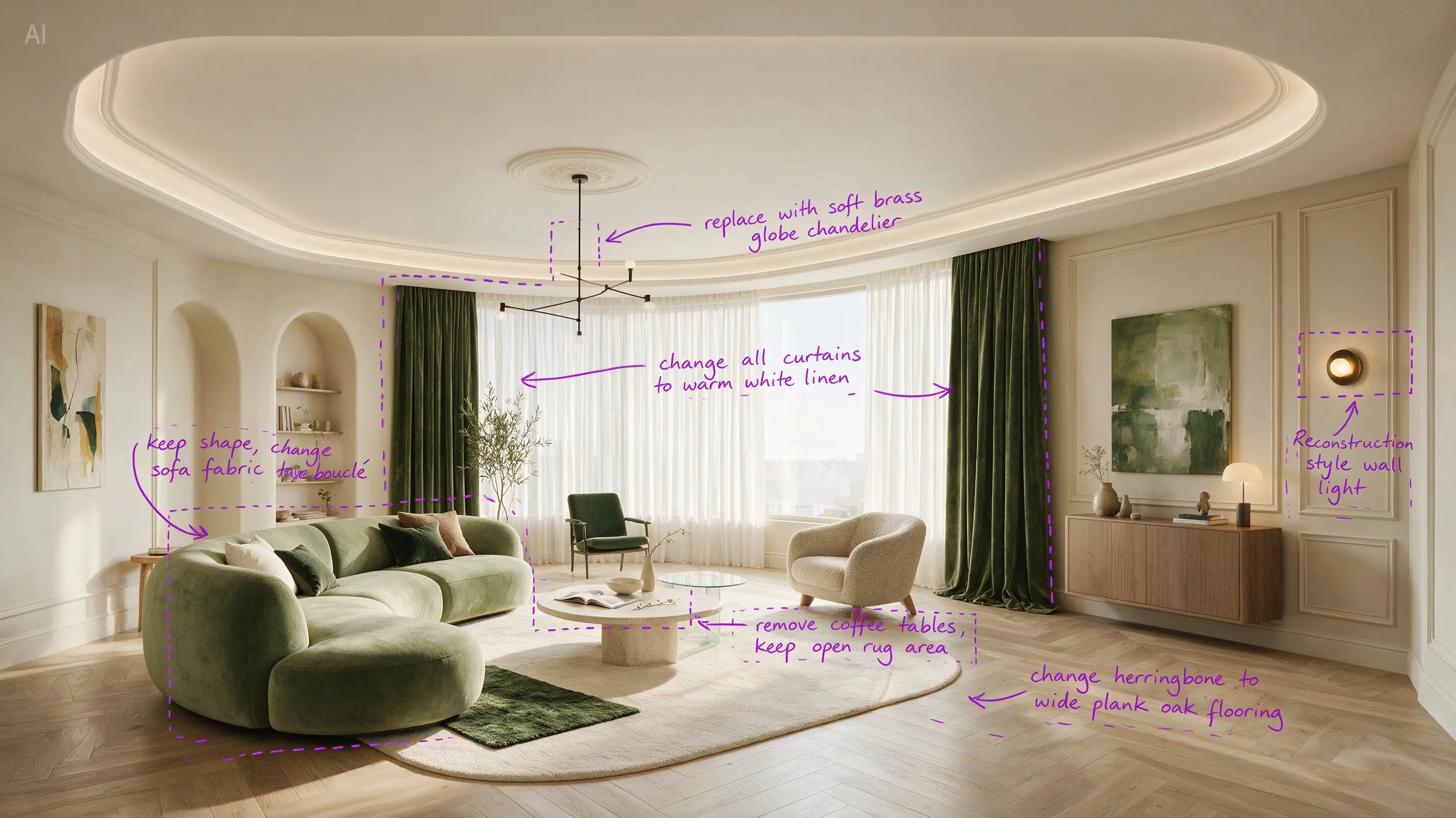
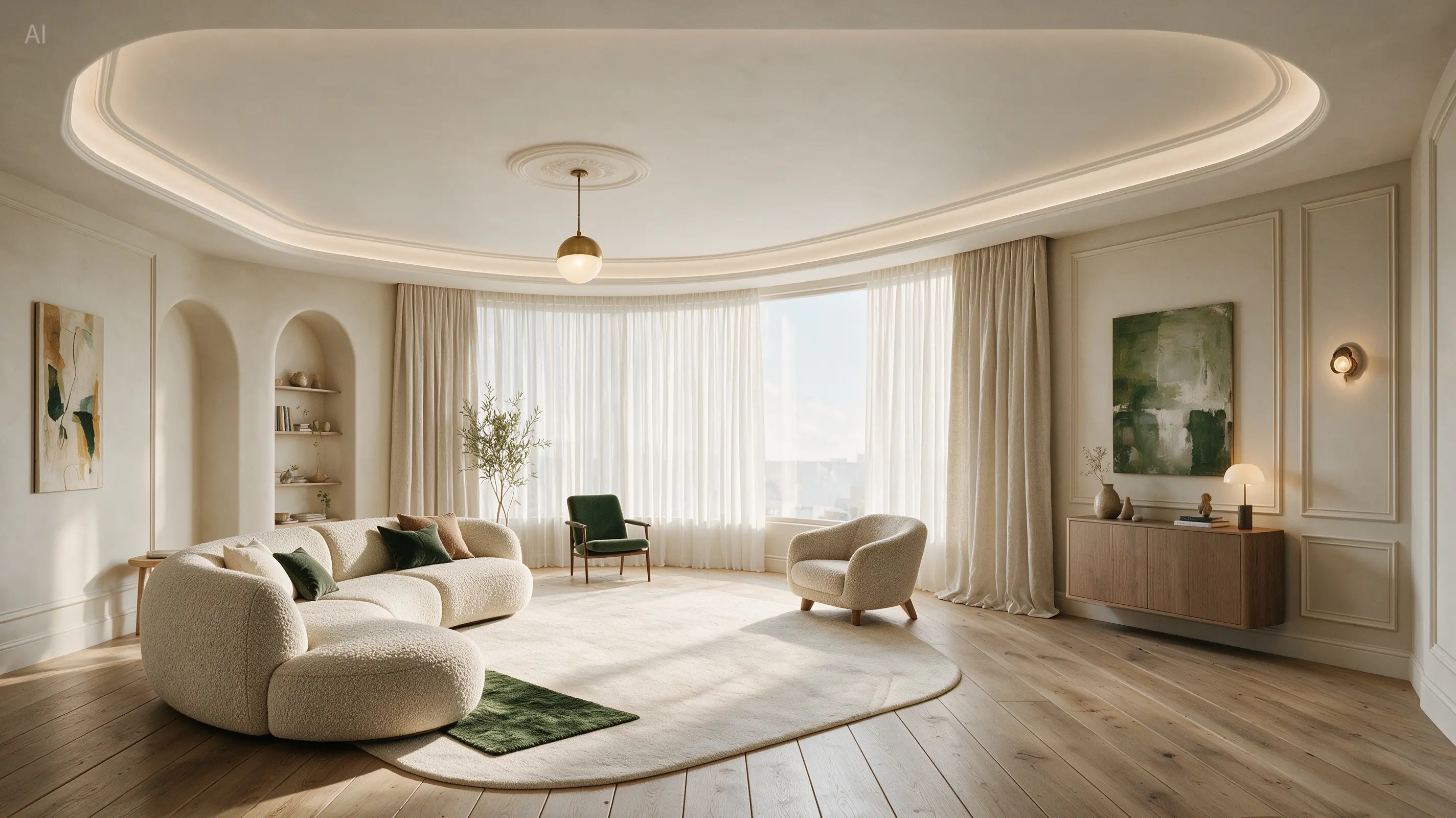
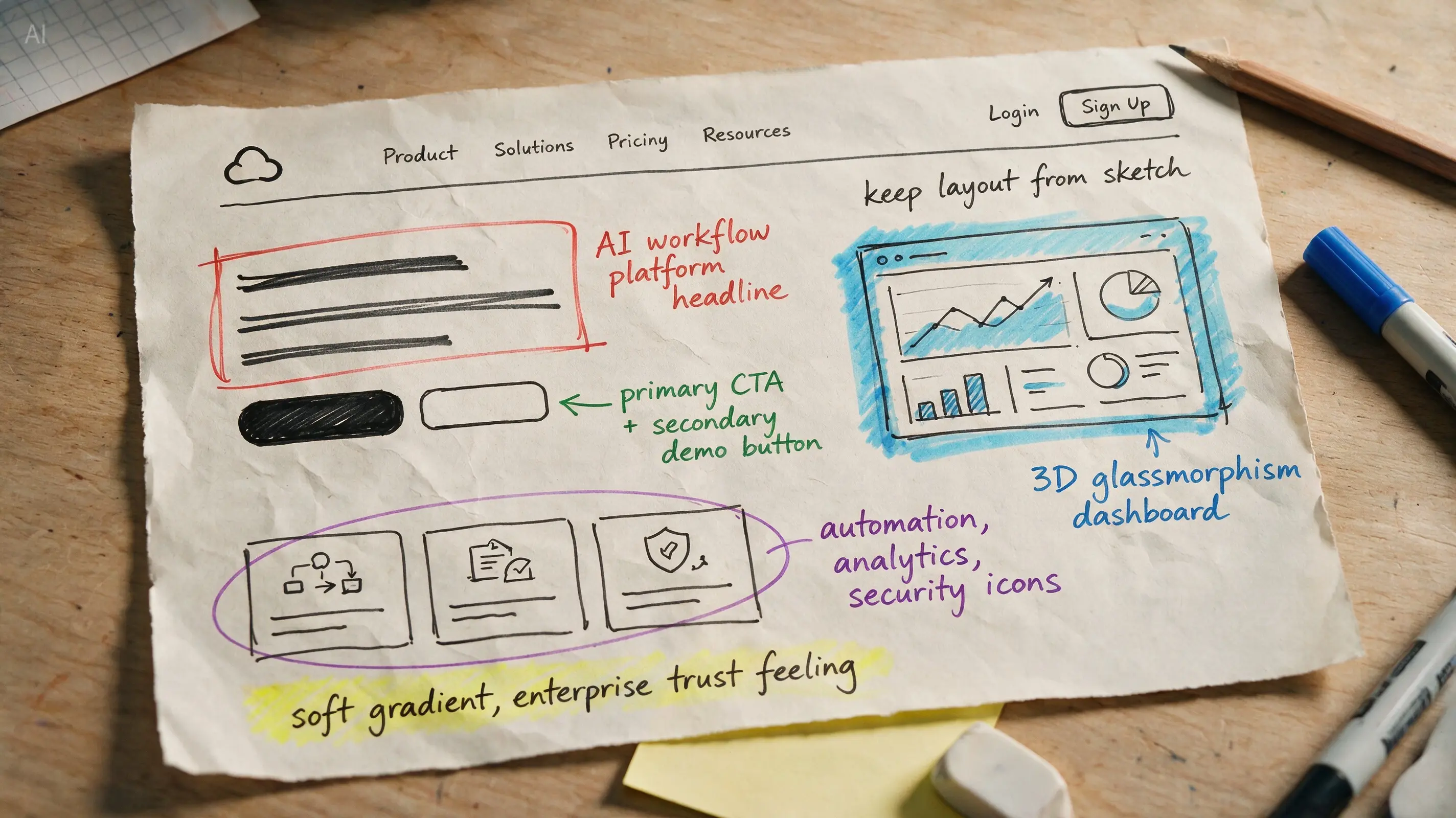
Reference-led revisions

Keep an edit focused in Seedream 5.0 Pro

Compare the source and revised images from ByteDance’s Seedream 5.0 Pro showcase. Look for the changes in layout and materials, then inspect the surrounding details to understand how the new direction fits the original composition.

Image source: ByteDance Seedream 5.0 Pro official showcase

Before · annotated reference
Living room reference with marked areas and handwritten edit instructions
After · official result
Official Seedream 5.0 Pro living room edit with a lighter palette and revised furniture

Interior redesign

Develop a room’s material palette

The Seedream 5.0 Pro interior example explores a new treatment within an established room. In your brief, identify the surfaces to update and the architectural details to preserve.

Before · layout sketch
Annotated hand-drawn wireframe for a SaaS website hero
After · official result
Official Seedream 5.0 Pro SaaS hero design developed from the layout sketch

Sketch to design

Turn a sketch into a designed screen

The Seedream 5.0 Pro website comparison develops a rough arrangement into a composed visual. Identify the purpose of each area before asking for more color, detail and typography.

Create in Veo 3

From a Seedream 5.0 Pro brief to a usable reference

The generator opens with Seedream 5.0 Pro selected. Prepare your brief and references, check the settings and credit total, then judge the result against the role it needs to play in your project.

  1. 01

    Define the shot’s purpose

    Tell Seedream 5.0 Pro whether the image establishes a place, introduces a product or explains an idea. Choose the focal subject and the intended crop before adding supporting details.

  2. 02

    Assign each reference a role

    Give Seedream 5.0 Pro a product reference for shape, a scene for atmosphere or a sketch for composition. Explain these roles so competing visual details have a clear priority.

  3. 03

    Choose the canvas and output

    Set the aspect ratio and choose 1K or 2K output for Seedream 5.0 Pro. Match the canvas to your planned placement and inspect the displayed credit total before submitting.

  4. 04

    Review and reuse the result

    Inspect your Seedream 5.0 Pro image for text, object edges and unwanted changes. Save the strongest result to your assets and use it when preparing a new image or video task.

Prompt planning

Write a Seedream 5.0 Pro brief around visible decisions

A useful Seedream 5.0 Pro prompt explains where the viewer should look and which details matter. Separate the subject, arrangement, light and exact wording so you can revise one choice without rewriting the entire idea.

A product frame with space for a title

Create a portrait image of one cobalt-blue ceramic vase on an ivory stone table. Place the vase slightly right of center and keep the top quarter open. Use soft daylight from the left, a gentle contact shadow and a warm plaster wall. Preserve the outline and glaze from the product reference. Include the small heading “FORM & FIRE” above the vase. Keep the camera at table height.

  • Give objects a position

    Tell Seedream 5.0 Pro which object is closest to the camera and where the background begins. Relative positions help clarify a scene with several elements.

  • Keep required text explicit

    Put exact wording in quotation marks for Seedream 5.0 Pro. Specify the language and placement, then check the lettering in the completed image.

  • Name one revision

    Ask Seedream 5.0 Pro to change a single material, prop or lighting decision. Compare that version with the earlier image before requesting another change.

  • Plan the later crop

    Leave room around the subject when using Seedream 5.0 Pro for a video reference. Check whether a vertical or horizontal crop preserves the intended focal point.

Choose a starting point

Fit Seedream 5.0 Pro into your project

Use the entry that matches the material you already have.

Start with a written idea

Use Seedream 5.0 Pro to explore a scene from a clear description of the subject and setting.

Create an image

Bring an existing frame

Upload a reference to Seedream 5.0 Pro when a recognizable shape, room or composition should guide the image.

Explore image generation

Compare generation costs

Check the selected output settings and displayed credit total before submitting Seedream 5.0 Pro tasks.

View plans and credits

Before you generate

Seedream 5.0 Pro questions

Practical details for preparing and refining your image.

What is Seedream 5.0 Pro useful for?

Seedream 5.0 Pro creates and edits images for posters, product scenes, storyboards and information-rich layouts. In a video project, it helps establish the visual reference for a shot.

How many references can I upload?

You can upload up to ten JPG, PNG or WebP images for Seedream 5.0 Pro editing. Identify the role of each reference and keep its important details clearly visible.

Which output sizes can I choose?

The Seedream 5.0 Pro generator offers 1K and 2K output with eight aspect ratios. Choose a canvas that suits the intended placement before refining small details.

How do I keep a product recognizable?

Give Seedream 5.0 Pro a clear reference and name the silhouette, label and material details to preserve. Inspect those details after each edit.

Can the image include several languages?

Seedream 5.0 Pro supports multilingual visual content. Supply exact wording, explain its placement and review the finished text with someone who reads the target language.

Where do the example images come from?

The images shown here were published in ByteDance’s Seedream 5.0 Pro showcase. Each example keeps its complete composition available in the full-size view.

Can I use the result in a video task?

Save your Seedream 5.0 Pro output as an asset, then select it as a reference for a compatible image-to-video model. Add a separate motion brief for that task.

How are credits calculated?

Seedream 5.0 Pro costs depend on output settings and reference inputs. The workspace shows the charge before submission, and the pricing page compares credits across models.

Prepare your next shot

Create the first frame with Seedream 5.0 Pro

Choose a scene, bring your references and make the image that gives your next video a clear direction.