Let speech sit inside a real scene
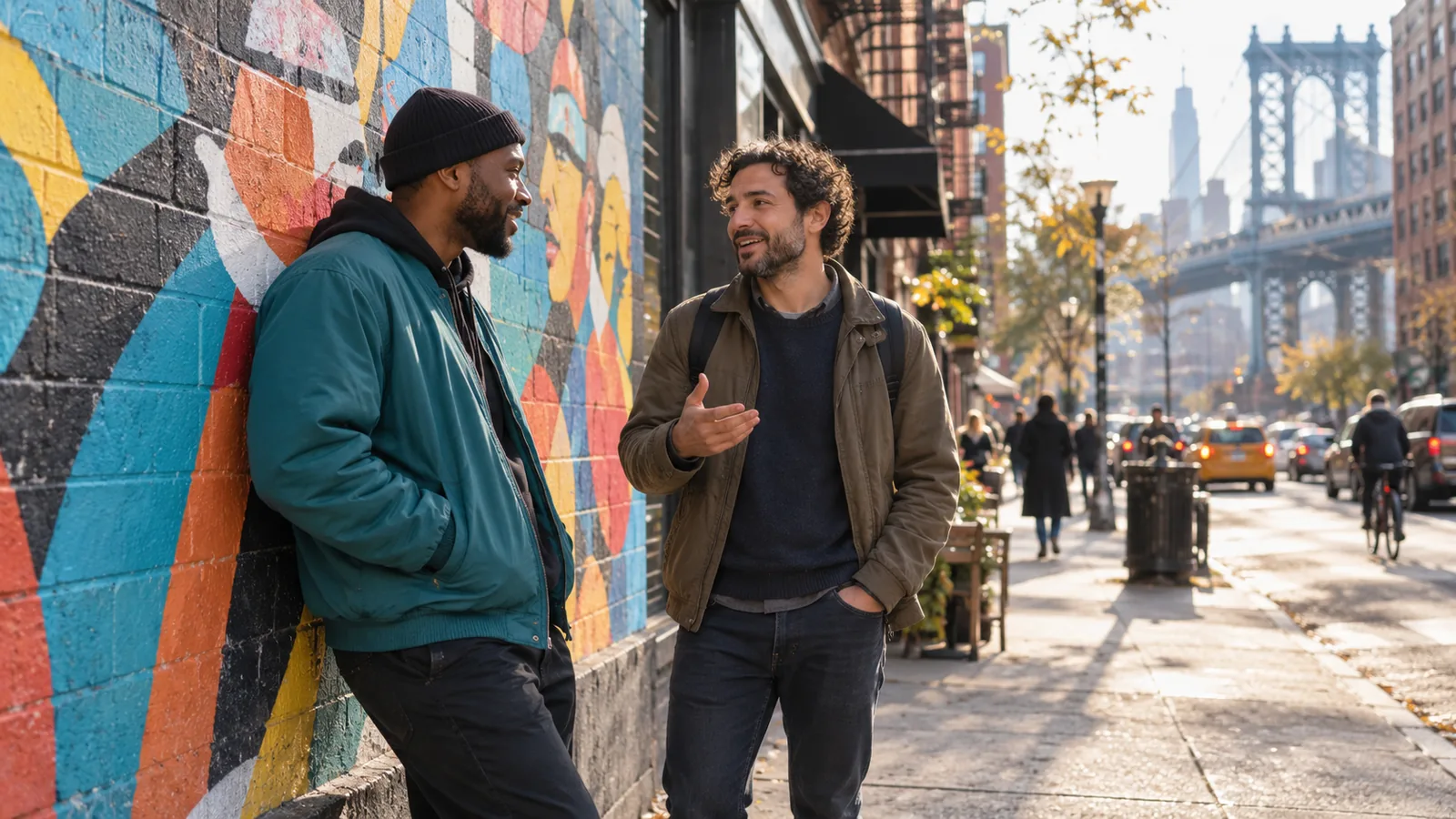
Two people talk beside a city mural. Speech, music, and street ambience make the setting part of the exchange.

Give the characters a brief exchange and describe the surrounding city sound.
Sign in to save your creations and manage your video workflow
Veo video examples
Explore Veo videos published by Google DeepMind. The new concept covers illustrate each creative direction; the playable videos come from the linked source.
Two people talk beside a city mural. Speech, music, and street ambience make the setting part of the exchange.

Give the characters a brief exchange and describe the surrounding city sound.
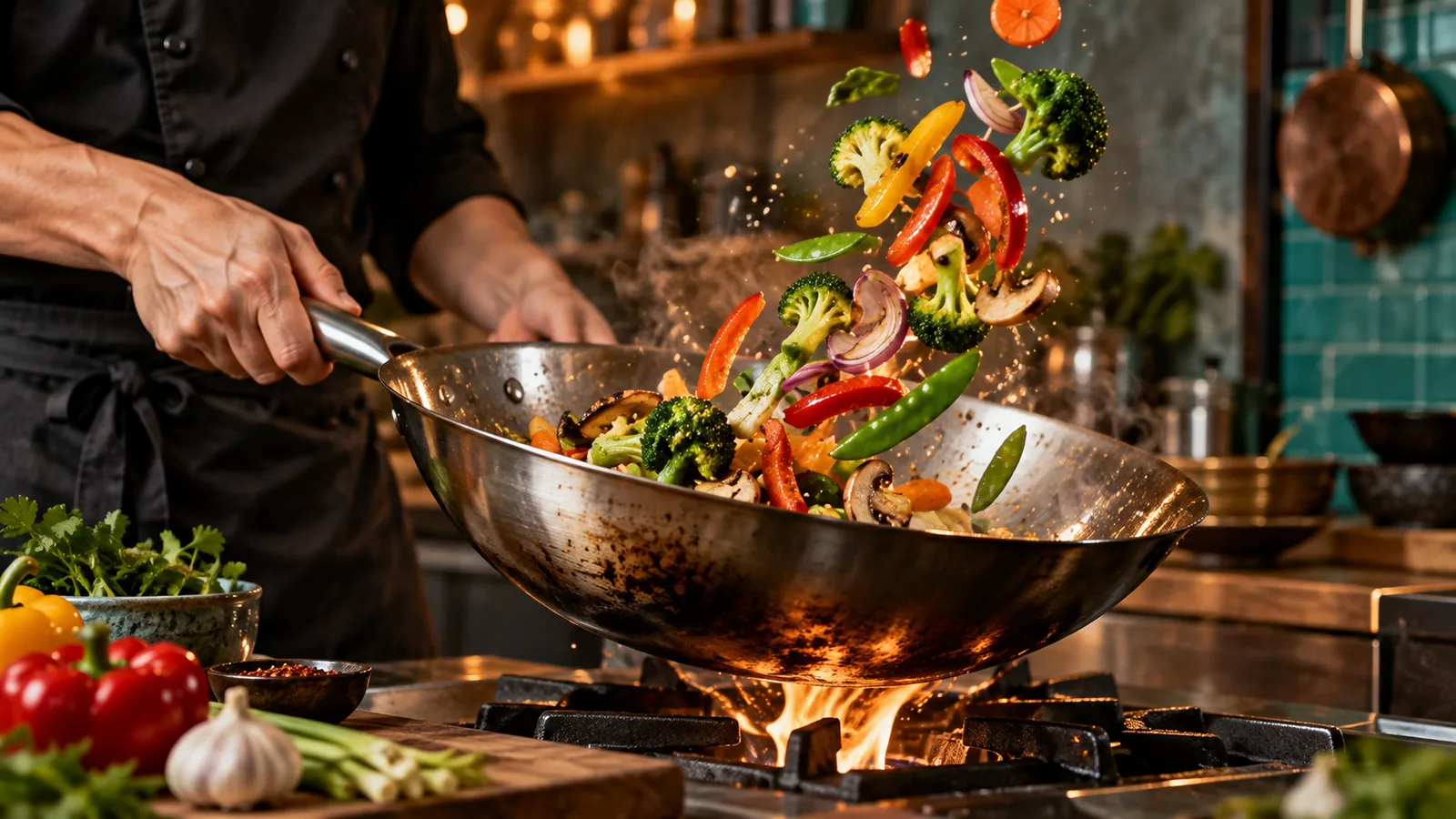
Vegetables lift from a wok as a metallic clank and whoosh accompany the movement.

Describe the visible action and the sound produced by it as separate instructions.
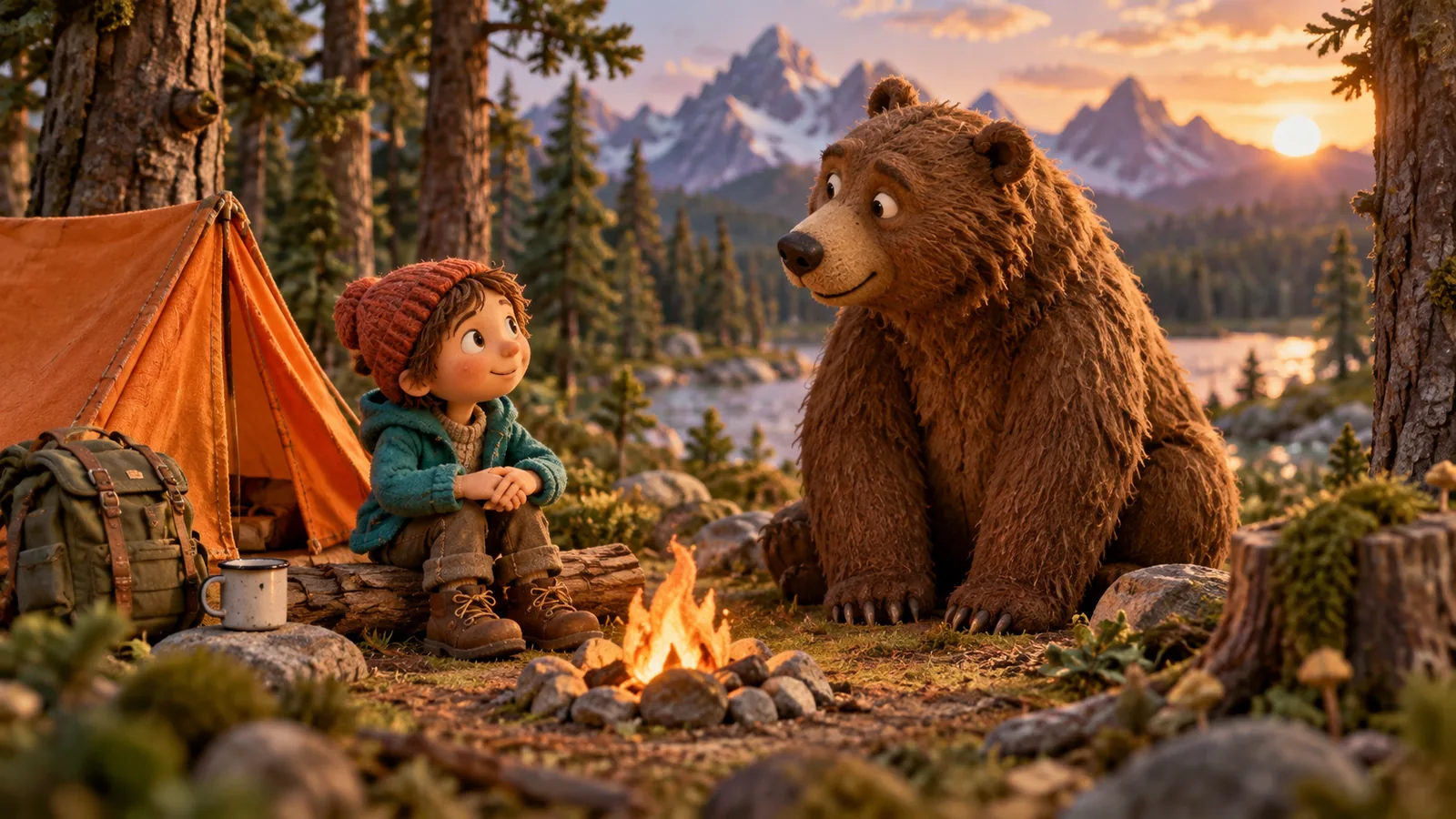
A stop-motion camper meets a bear. Dialogue and material texture carry the small story.

Specify the animation style, character action, and short lines of speech.
A camera move through a window leads into a kitchen scene with fizzy-drink cans.

Define the camera path and place the product clearly within the destination.
A documentary-style raccoon runs a coffee shop, pairing character performance with dialogue.

Compose around a central subject and one short action that reads clearly on a phone.
A scene is more than a picture
The Veo 3 family brings the visual moment and its sound together. Build a focused clip around the message your audience should remember.
Describe speech, sound effects, and ambience alongside the action
Shape a short scene with Veo 3.1; duration options depend on the mode
Compose for widescreen storytelling or a vertical social feed
What Veo 3 brings to your scene
Veo 3 introduced native sound to video generation. Veo 3.1 builds on that foundation with stronger image direction, richer audio, and more ways to guide a scene.

Describe the subject, action, setting, light, and camera. Explore realistic film, animation, and stylized visual directions without beginning with a finished storyboard.
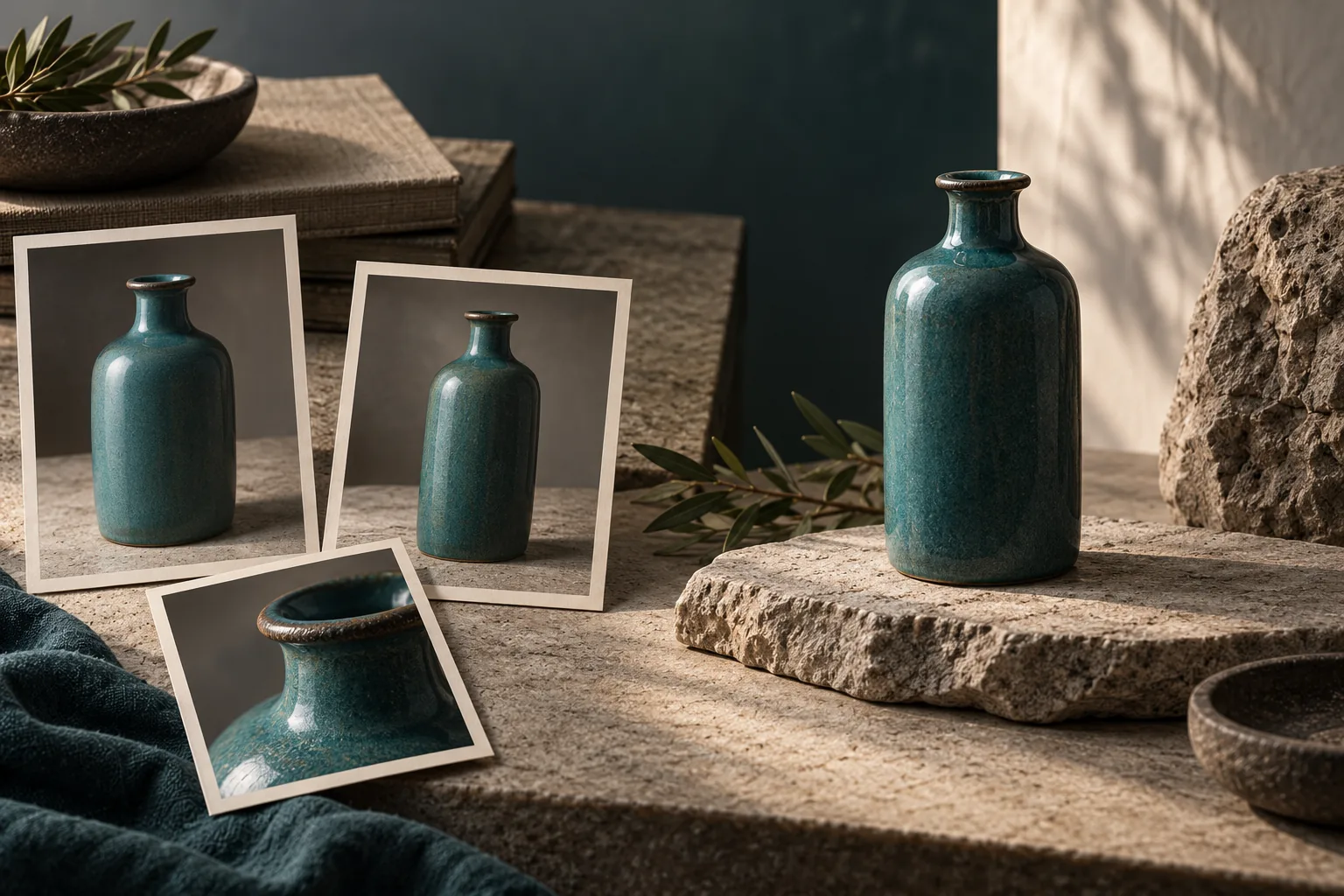
Start from a product photo, portrait, or illustration. Explain what moves and how the camera follows it, while the image guides the opening composition.
Add character dialogue, the scrape of a chair, a passing engine, or soft room tone. Describe audio separately from visual action so each instruction has a clear purpose.
Use a close-up for a product detail, a tracking shot for movement, or a slow camera push for an emotional beat. Specific cinematic language gives the model clearer direction.
Veo 3.1 creative control
Choose the inputs and model variant around the part of the idea that matters most: a recognizable subject, a planned transition, or room to iterate.

Veo 3.1 reference-image generation can use up to three images to guide a person, character, or product. Choose a small set of clear views instead of unrelated inspiration; reference mode uses an eight-second clip.

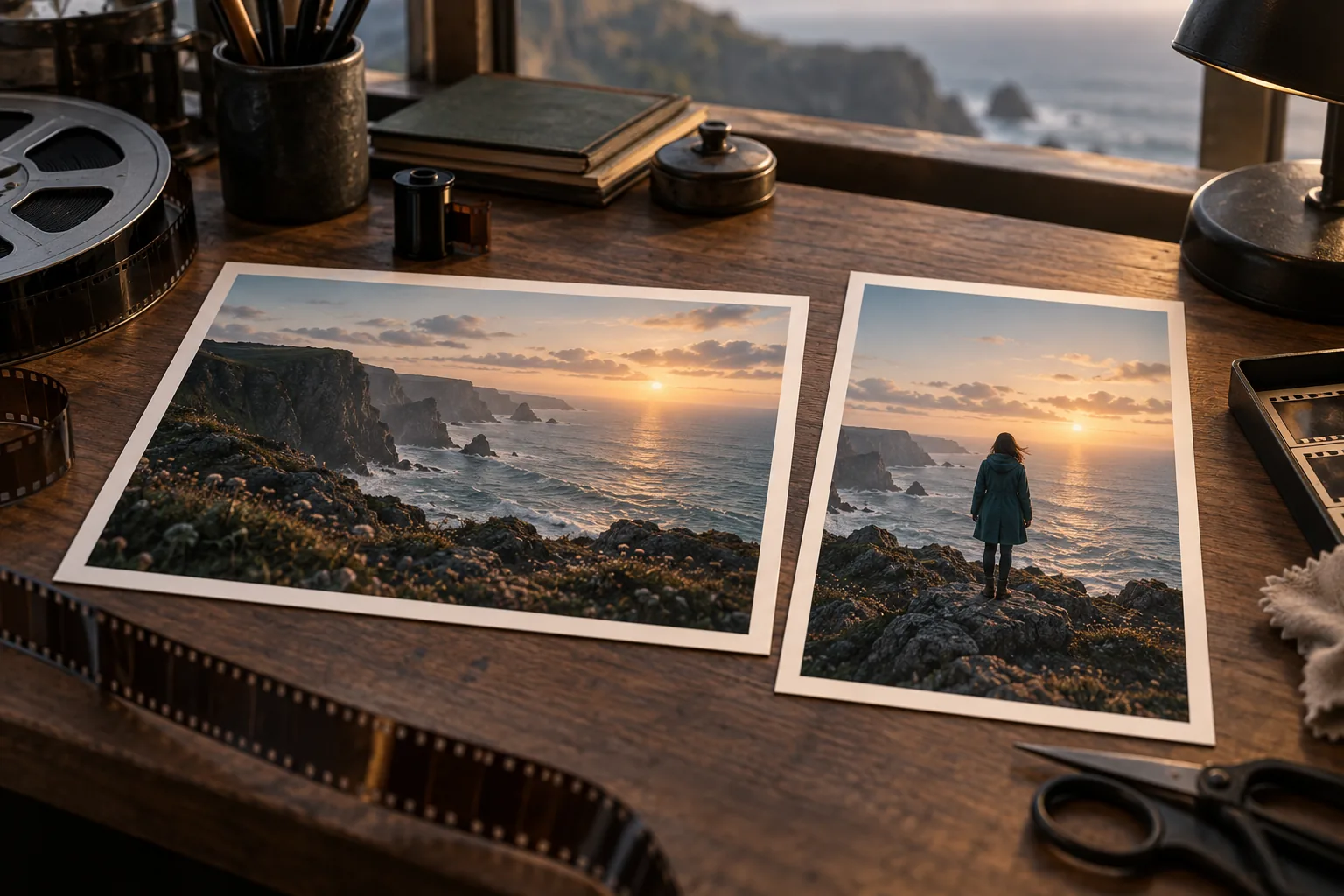
First and last frames help you define where a clip begins and ends. Describe the action that connects them, from opening a door to revealing a product, instead of leaving the transition to guesswork.

Veo 3.1 Lite is designed for high-volume iteration in 720p or 1080p. Fast balances speed with more creative options, while the standard version focuses on quality. Compose in 16:9 or 9:16; higher-resolution options vary by version.
How to create with Veo 3
A useful prompt explains what the viewer sees, how it changes, and what they hear. Refine the most important detail after watching the result.
Use text for a new scene or an image for an established subject. Pick a model and input mode that fit your idea.
State one main action, the setting, lighting, framing, and camera movement. Keep the first clip focused.
Name the speaker and their line, then describe distinct effects or ambience. Avoid conflicting audio instructions.
Check subject details, motion, timing, and audio. Adjust one part of the brief, then compare the next variation.
Ideas worth making visible
From a product detail to an imagined world, the value of a clip comes from what it helps you show, test, or explain.
Explore a reveal, material detail, or product-in-use moment before choosing the direction of a campaign.
Frame one clear hook in portrait format. Use action and sound to build a short scene around a single message.
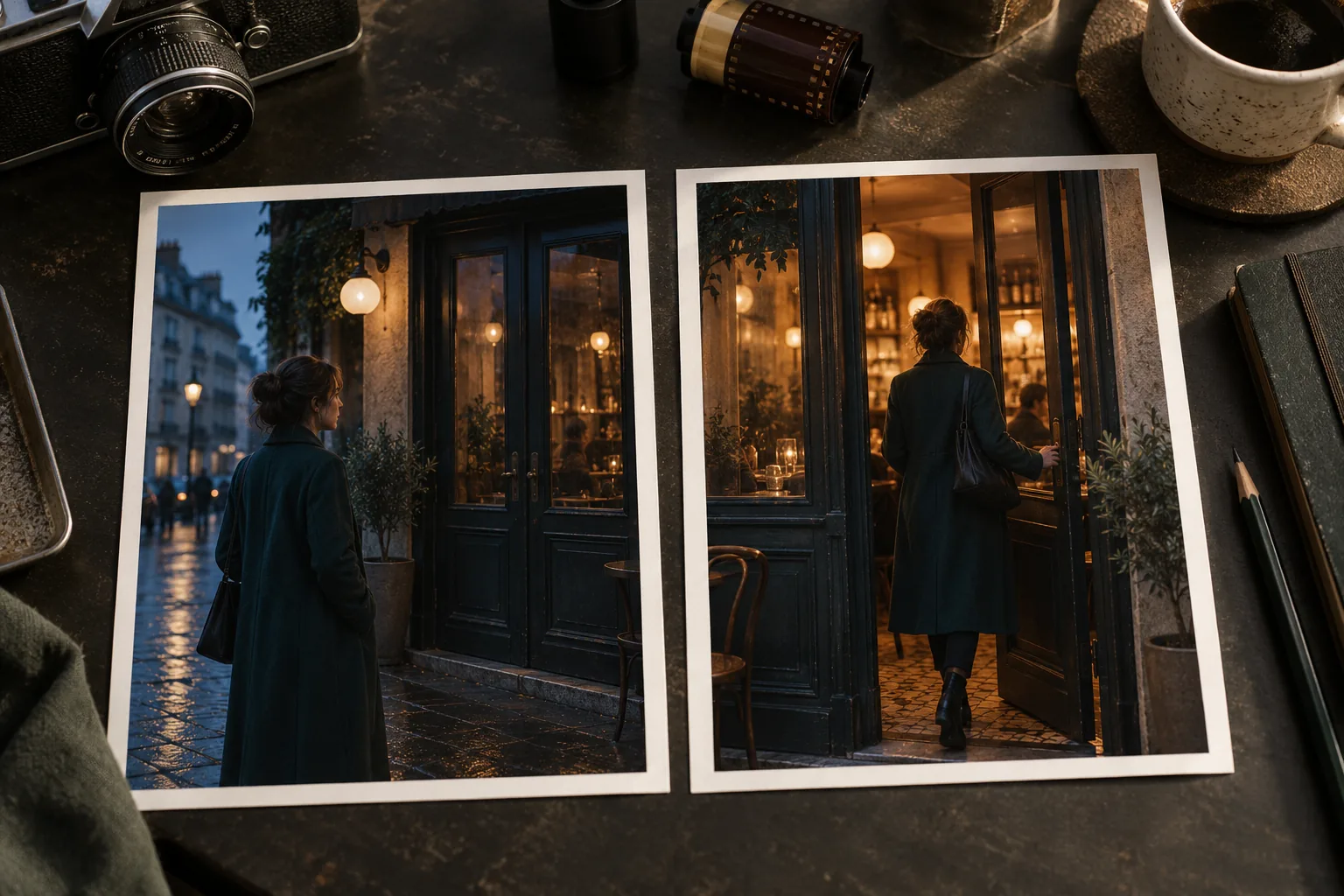
Test a line of dialogue, a reaction, or an exchange between characters with the surrounding environment in mind.
Explore stop-motion, illustrated, or cinematic styles for story ideas and expressive character moments.
Try a camera move, scene transition, or opening shot before committing to a larger production.
Create a visual sequence to support an explanation or presentation. Check factual accuracy before sharing it.
Veo 3 questions
Understand the family, the creative controls, and the details that make a prompt useful.
Veo 3 is Google DeepMind’s video generation model family with native audio. It can create moving scenes from text or an image, including dialogue, sound effects, and ambient sound. Veo 3.1 develops the family’s image direction and creative controls.
Veo 3.1 improves prompt following, image-to-video quality, and audio. The family adds reference-image direction, first and last frames, portrait formats, and extension of eligible Veo-generated clips. Each variant and input mode has its own limits.
Veo 3.1 Lite is designed for frequent iteration and supports 720p or 1080p video. Fast emphasizes speed with broader creative options; the standard model focuses on quality. Lite does not support 4K in Google’s published specifications. Review the selected mode and settings before generating.
Veo 3.1 offers 4-, 6-, or 8-second clips at 24 frames per second, in 16:9 landscape or 9:16 portrait. Some modes require eight seconds, including reference-image generation and high-resolution output. The available combination depends on the model variant and mode.
Yes. Include the words a character should say and describe effects or ambience in the prompt. Keep dialogue short enough for the clip, identify who is speaking, and listen to the result before choosing a final version.
Veo 3.1 offers reference-image direction with up to three subject images, as well as first/last-frame generation. These are different ways to guide a clip: references describe the subject, while first and last frames define the visual endpoints. Support differs by variant and endpoint.
Veo 3.1 supports extending eligible Veo-generated videos to continue a scene. Extension has its own duration and resolution limits, and availability differs between model variants and endpoints. Start with a coherent short clip and plan the continuation as another scene beat.
Google describes the family’s 1080p and 4K high-resolution rollout as upscaling. 4K is a version-dependent output option, not a feature of Veo 3.1 Lite. Choose the resolution around your intended use and review fine details in the result.
Describe one subject, one main action, the environment, lighting, camera direction, and sound. If using an image, explain the desired motion rather than restating every visible detail. Check the credit estimate and selected settings before submitting.
Choose recurring credits or a one-time pack for AI video and image creation. Review the billing interval, credit amount, and validity; the generator shows the cost of each task.
Cancel anytime
Your next scene starts with a brief
Start with one clear idea. Choose text or an image, direct the action, and use Veo 3 to explore a first moving version.