GPT Image 2.6 for a campaign with a clear visual direction

Develop the images that connect a product, a message and a scene. GPT Image 2.6 supports detailed creation and editing, with Sunburst for involved visual work and Flare for faster exploration. Plan a campaign frame, refine a selected detail or explore a graphic and motion treatment for your idea.

Shape the deliverable

What GPT Image 2.6 adds to a creative brief

GPT Image 2.6 brings several ways to work on an image, from a new composition to an annotated revision. Choose the output around the asset’s purpose, then define the visual decisions that deserve the most attention.

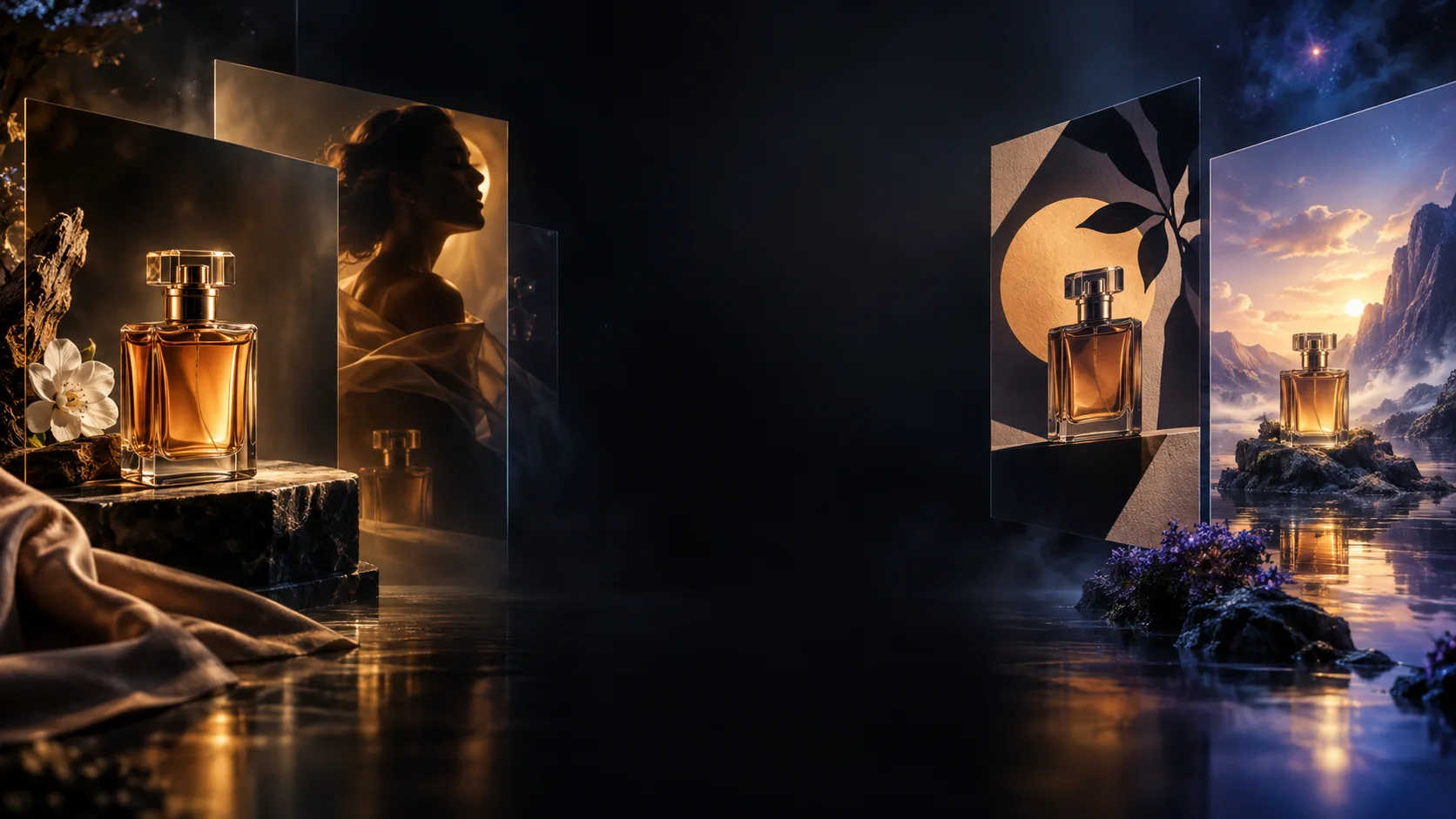
A collection of visual references for exploring subjects, materials and compositions

Reference compositions for planning products, materials and color relationships.

01

GPT Image 2.6 composition and rendering

GPT Image 2.6 provides adjustable planning complexity alongside rendering quality. Begin by deciding how many relationships the composition must resolve. A single object on a plain surface and a scene with several interacting subjects call for different briefs. Keep the result’s intended size in mind when judging the detail.
02

GPT Image 2.6 edits guided by a marked area

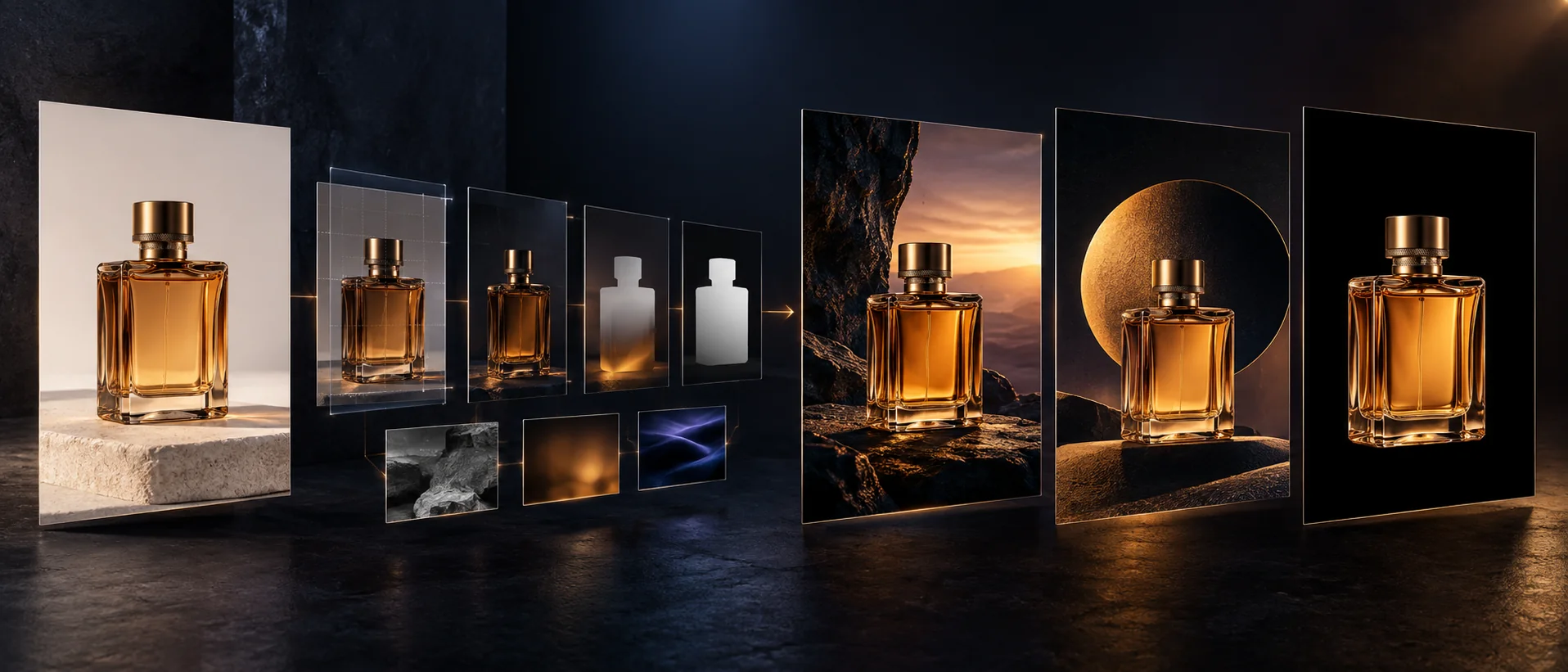
Use a transparent annotation layer to direct GPT Image 2.6 toward the part of a reference you want to revise. Match the annotation to the first image’s dimensions and describe the change in words. Clear markings are especially helpful when several similar objects appear in the frame.

03

Scalable graphics with GPT Image 2.6

GPT Image 2.6 supports SVG generation for graphic work. Plan the shapes, palette and intended display size before requesting an icon or illustration. Inspect the resulting paths and small details when bringing the asset into a design workflow, particularly if it must match an existing set.

04

A short GPT Image 2.6 animation

GPT Image 2.6 also supports animated GIF output. Write a small motion brief with a subject, one action and a stable viewpoint. For a loop, explain how the final pose returns to the opening pose. Preview the timing at its intended display size before placing it in a campaign.

Campaign planning

Use GPT Image 2.6 to connect the assets in a project

A product frame, social image and motion accent can share a palette and visual rhythm. Give GPT Image 2.6 the same reference decisions while tailoring the composition to each placement.

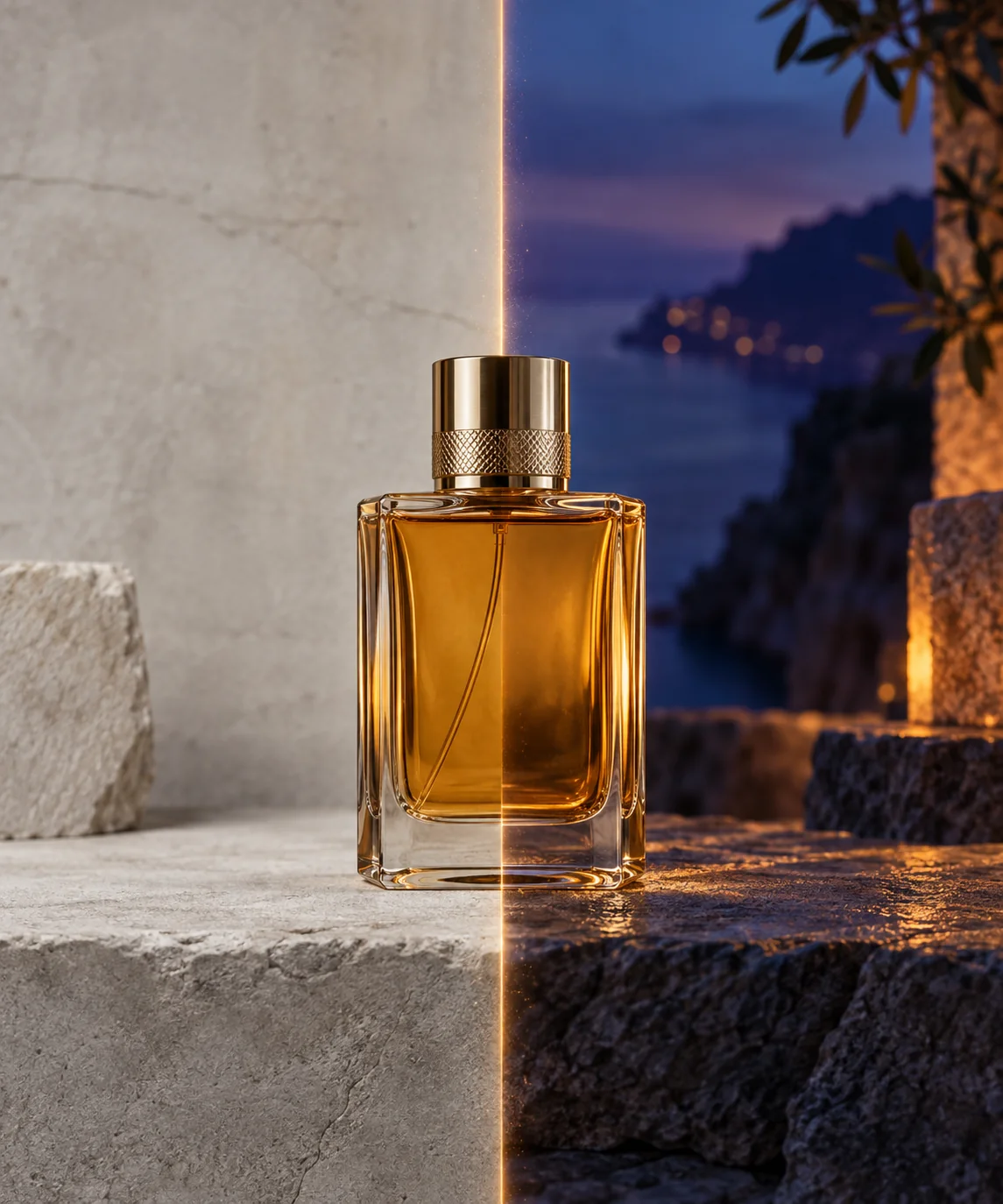
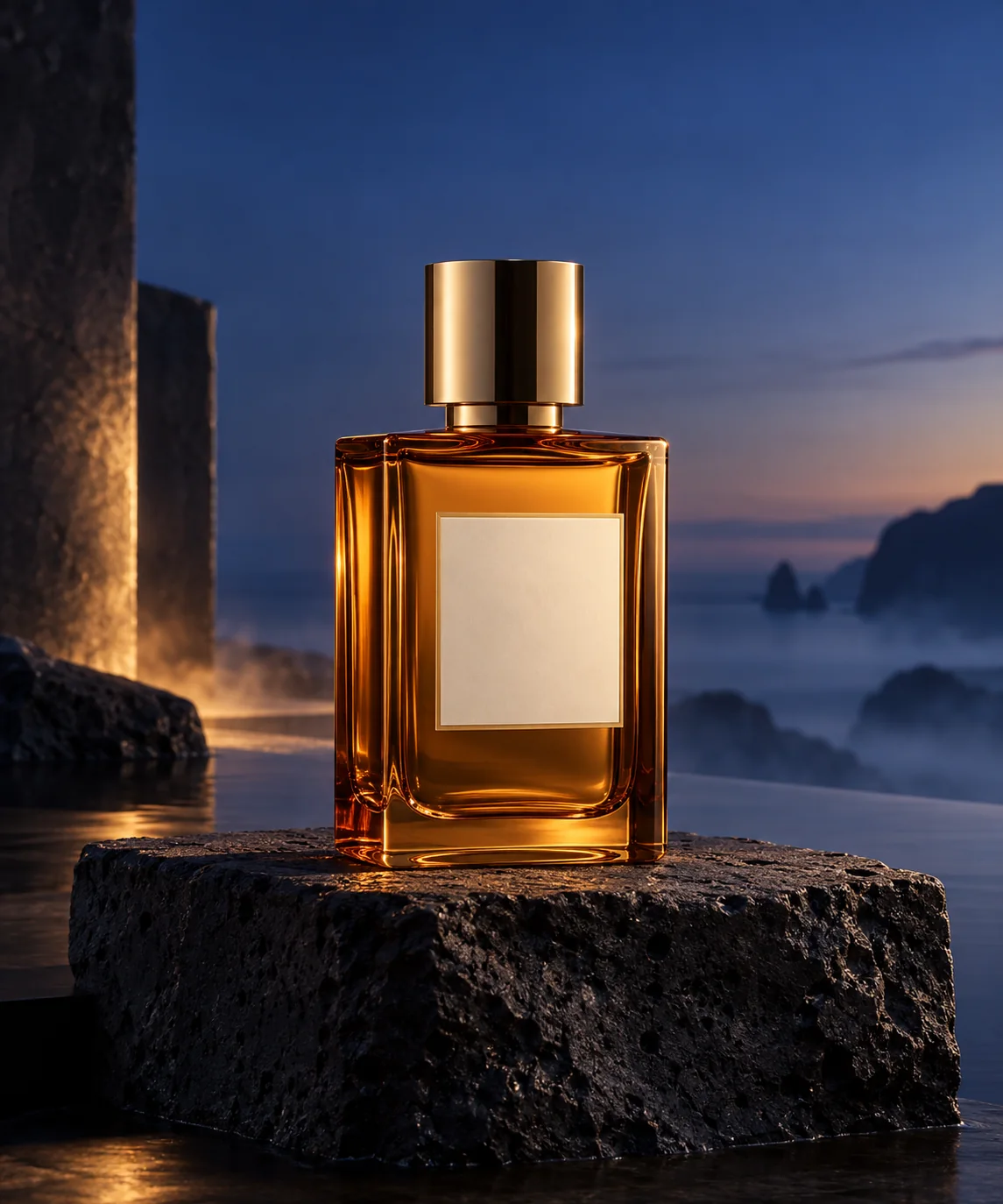
An amber perfume bottle used as a reference for a product campaign scene
Product images

A GPT Image 2.6 product frame for a later shot

Use GPT Image 2.6 to place a product in a scene with a clear camera angle, light direction and material treatment. Keep the silhouette and packaging details visible. Leave enough space around the subject for the intended crop, then use the selected image to plan movement in a separate video task.

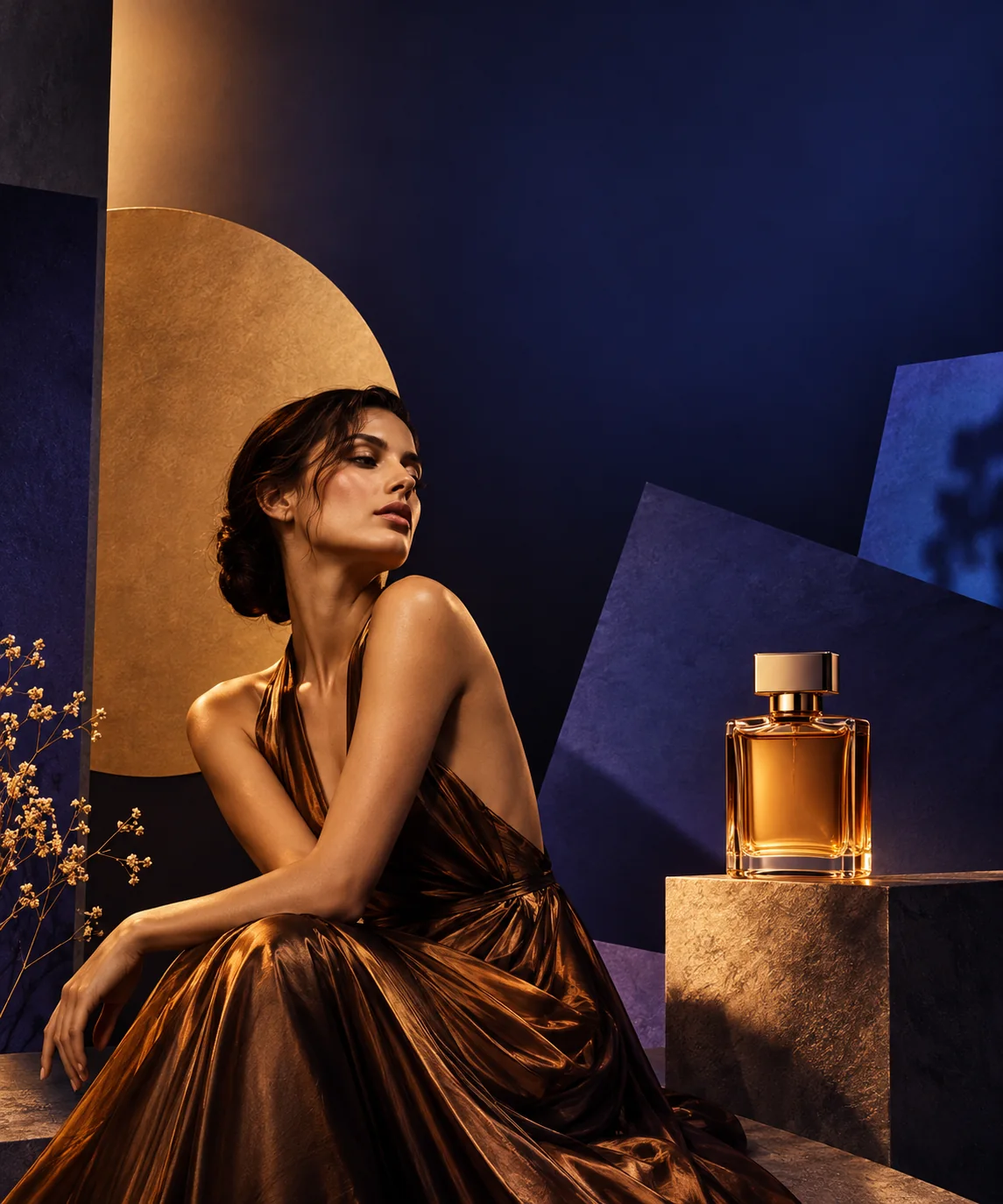
Poster and social layouts illustrating different ways to arrange a campaign
Posters and social graphics

Text and composition in GPT Image 2.6

Give GPT Image 2.6 exact wording, a language and a hierarchy for a campaign poster. Decide which line should catch the eye first and where supporting copy belongs. Review the result at mobile size, where a line that looks readable on a large canvas may become difficult to follow.

Product image variations used to plan a focused visual revision
Targeted image edits

A focused GPT Image 2.6 revision

Ask GPT Image 2.6 to change a background color, replace one prop or adjust a defined area. Name the subject details, framing and light you want to preserve. Compare the new version with the source before continuing so you can identify what the revision contributed to the project.

Work through an image

Build a GPT Image 2.6 brief you can refine

Make each generation answer a creative question. Decide what you want to learn from the first result, then use that result to choose the next instruction.

  1. 01

    Set the asset’s role

    Start a GPT Image 2.6 brief with the placement and purpose. Name the main subject, the audience’s first point of attention and the intended crop. A clear role helps you judge the composition.

  2. 02

    Assign the references

    Explain whether each GPT Image 2.6 reference supplies a product shape, a palette or a layout. Give competing details a priority and use images where the important features are visible.

  3. 03

    Review settings before submitting

    Select the generation model and settings in the image workspace. Check the displayed credit total, reference inputs and output choices before starting. Save the brief so the next comparison has a consistent starting point.

  4. 04

    Choose a specific follow-up

    After reviewing a GPT Image 2.6 result, change one decision that affects the asset’s purpose. Inspect text, product edges and crop, then preserve the successful parts of the brief for the next version.

Prompt planning

A GPT Image 2.6 prompt for a product campaign

Write the scene as a set of visible relationships. This GPT Image 2.6 prompt separates the product, empty space, lighting and exact wording, giving you several clear choices to refine after the first result.

Ceramic studio campaign frame

Create a portrait campaign image for a ceramic studio. Place a terracotta vase and one olive branch on a warm cream surface, slightly right of center. Preserve the vase outline and glaze from the product reference. Leave the upper-left quarter open for the heading “Made for quiet moments”. Use soft window light from the left and a gentle shadow. Keep the palette to warm clay, cream and muted green. For a second version, change the background to pale sage while preserving the arrangement.

  • Connect the crop to the placement

    Tell GPT Image 2.6 where the image will appear. A narrow mobile card needs a different relationship between subject and empty space than a wide campaign banner.

  • Make wording easy to identify

    Separate the exact words from art direction in a GPT Image 2.6 prompt. State their language and placement, and check spelling and line breaks in the image.

  • State which relationships matter

    For a GPT Image 2.6 edit, specify the camera position, object size and lighting to preserve. These anchors make the requested change easier to describe and compare.

  • Give a loop a beginning and an end

    When planning a GPT Image 2.6 GIF, describe the starting pose, action and return. Keep the camera and background stable if the subject’s movement carries the idea.

Sunburst and Flare

Choose a GPT Image 2.6 direction for the job

Use the same creative brief when comparing approaches. Evaluate the image against its intended role and the details that need to survive into the finished asset.

Develop a detailed composition with Sunburst

GPT Image 2.6 Sunburst suits involved visual work and editing. Give it a brief that explains the relationships between subjects, materials and light, then inspect the most demanding area of the result.

Plan a detailed prompt

Explore alternatives with Flare

GPT Image 2.6 Flare emphasizes faster iteration. Compare a small set of framing or palette decisions while keeping the product and message consistent, then develop the direction that best serves the campaign.

Build your creative workflow

Carry the frame into a video brief

Save the image you select and choose a compatible image-to-video model in Veo 3. Add the intended action, camera movement and sound separately so the video task has a clear direction.

Open the image workspace

Practical questions

Working with GPT Image 2.6

Use these details when choosing the next step for your image project.

What is GPT Image 2.6?

GPT Image 2.6 is an image creation and editing model family with Sunburst and Flare. It supports text and image-led creative workflows for visual assets.

How do Sunburst and Flare differ?

GPT Image 2.6 Sunburst focuses on detailed visual work. Flare supports faster exploration. Compare the output against the composition and precision your project requires.

What can I do with annotations?

Guide GPT Image 2.6 with a transparent PNG annotation layer aligned to the first reference. Pair marks with a written instruction about the area and change.

When is GPT Image 2.6 SVG output helpful?

Use GPT Image 2.6 SVG output for scalable graphic elements such as icons and illustrations. Inspect their paths, palette and appearance at the final size.

How should I describe a GPT Image 2.6 GIF?

Give GPT Image 2.6 one clear action, a viewpoint and a loop direction. Describe the opening and closing pose so the movement has a defined cycle.

How do I keep a GPT Image 2.6 series consistent?

Repeat the palette, light direction and reference details in your GPT Image 2.6 briefs. Compare the images together and refine the most visible differences.

Can I prepare an image for video?

Yes. Use GPT Image 2.6 to plan a composition, save the result and bring it into a compatible video workflow with a separate motion brief.

Where can I review generation costs?

The workspace shows credits for the selected model and settings before submission. The pricing page provides a model comparison and plan calculator.

Plan the next asset

Give GPT Image 2.6 a scene worth developing

Start with your subject and references, decide what the viewer should notice, and refine the image that connects your campaign.